
EK1 Latest Version: Android Download and Update Guide
EK1 Latest Version describes the Android APK build listed on this website, rather than independently confirming the newest official release across all sources. This guide explains where the download button leads, how mobile-number confirmation works, and how to update an existing installation without unnecessarily removing your account.
- For new users: open the download flow, confirm your mobile number, save the Android installer and follow the installation prompts.
- For existing users: compare your installed version with the version in the information table below before updating.
- After an update: open the app, check the main lobby and confirm that your existing account is accessible.
The update and account-retention steps below reflect the experience reported for the website's current EK1 download flow. Device compatibility and future app releases can still vary.
About EK1 Game: The Android app includes game categories, mobile-number account access and wallet features. This page focuses specifically on checking and updating the installed version. For app navigation, read the EK1 App guide; for account access, see EK1 Login.
EK1 Game Version and APK Information
The information table above describes the APK offered through this website. Installed storage may be greater than the download size because Android also stores app data and cache. Compare the downloaded file with the current listing before installation.
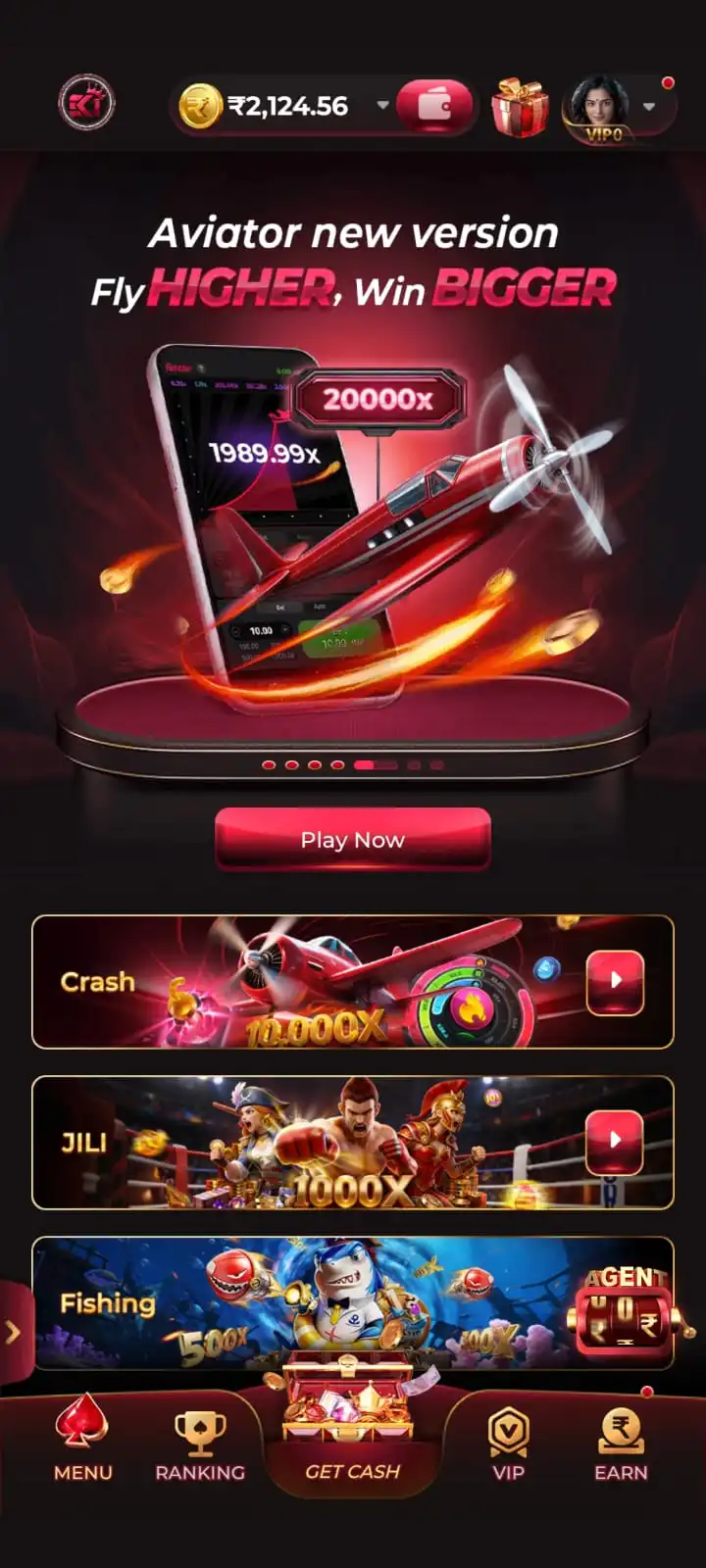
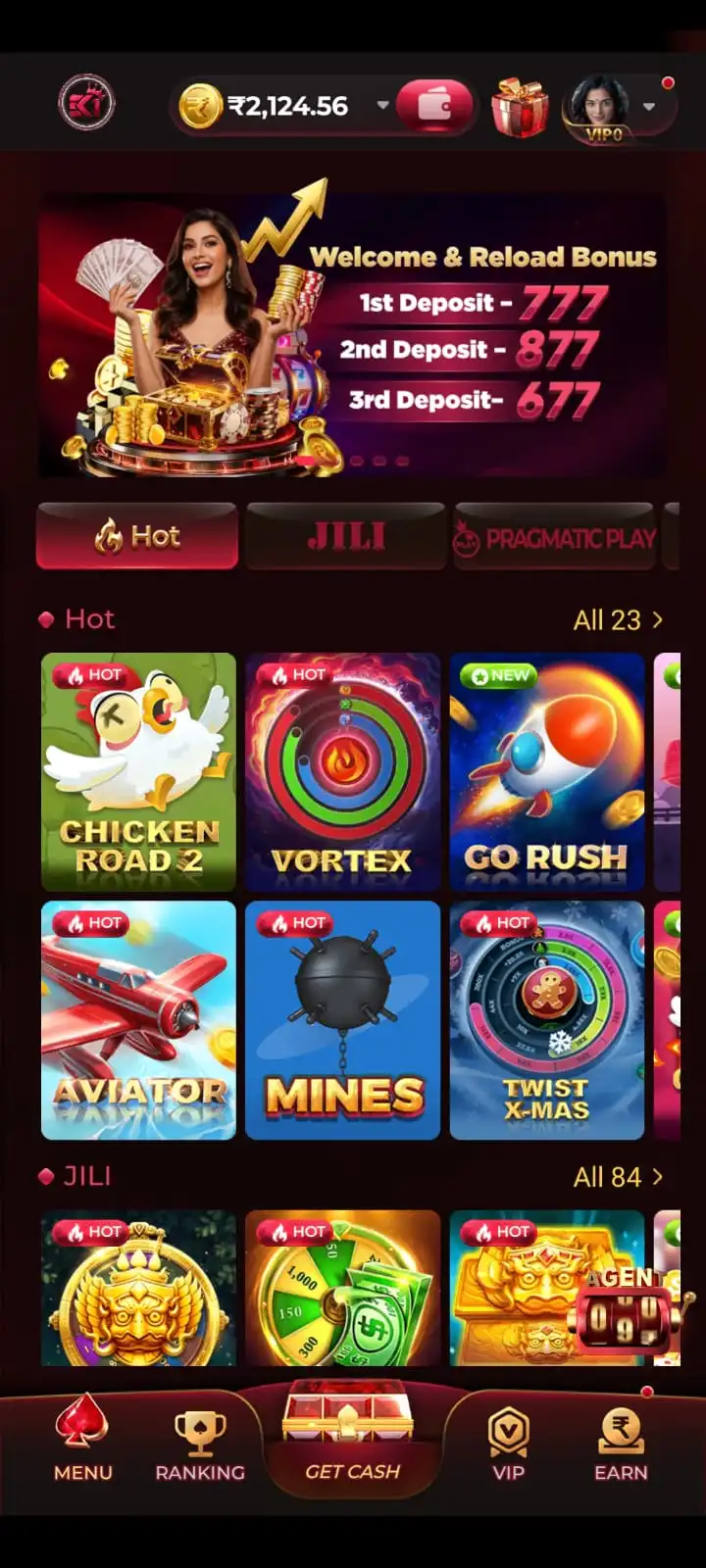
How to Check the Installed EK1 App Version
You can check the version through Android Settings without removing the app or opening the downloaded APK. Menu wording changes between Samsung, Xiaomi, Vivo, Oppo and other Android phones, but the installed-app information remains the useful starting point.
- Open your phone's Settings application.
- Find Apps, Applications or App Management.
- Locate EK1 Game in the installed application list and open its details.
- Find the version number, often displayed on the app information screen or under an additional details menu.
- Compare that value with the version listed in the App Information table.
If your phone already shows the listed version, there is no version-number reason to reinstall the same package. If the installed version is lower, an update may be appropriate when you have a compatible package from the intended source. If your phone shows a version higher than the version listed in the App Information table, do not replace it with this older package. Some Android builds also display version information inside an application's settings or About section, but Android's own app information page is the more consistent place to look.
Why the Installed Version and Package Identity Matter
Android identifies an installed app using package information and a signing identity, not merely the visible game name. Two files can both display “EK1 Game” while belonging to incompatible packages. An update may fail even when the downloaded file looks correct if Android cannot match it to the existing installation. Check the installer source and the exact error before attempting to resolve an incompatibility.
Before Updating EK1 Game
Before replacing an existing installation, check the details that can affect both the update and your ability to sign in afterward. This is particularly important when your account uses mobile-number verification.
- Registered number: Keep access to the mobile number connected to your EK1 account so you can receive a verification code if another sign-in is requested.
- Password access: If you have created a login password, make sure you know it or have access to the appropriate recovery method.
- Storage: Leave sufficient free space for the APK, temporary installation files and app data.
- Connection: Use a stable internet connection and wait for the file transfer to finish.
- Package: Make sure you are using the intended EK1.apk rather than an unrelated or modified copy.
- Running app: Close any active EK1 game session before starting the installation.
Avoid uninstalling the working version just to try a new package. Uninstalling can remove locally stored files and settings, and it may require you to complete account verification again. If you are uncertain whether the new APK is compatible, keep the working installation until you have resolved that question.
Verify the Update Source and Existing Account
Check that the browser opens the intended EK1 download destination; the website links to an external agent/share page and does not host the installer itself. A familiar icon or filename alone does not verify a package. If Android flags a file as harmful, stop instead of overriding the warning. Keep the registered mobile number available for any sign-in request. If a new package conflicts with your existing app, preserve the working installation while verifying its package identity and signing compatibility.
How to Update EK1 Game on Android
For an existing EK1 installation, a normal Android update uses a compatible APK installed over the current app. Follow these steps after checking that the listed version is the version you intend to install.
- Compare versions. Check the EK1 version currently installed on your phone and confirm that the listed version is newer.
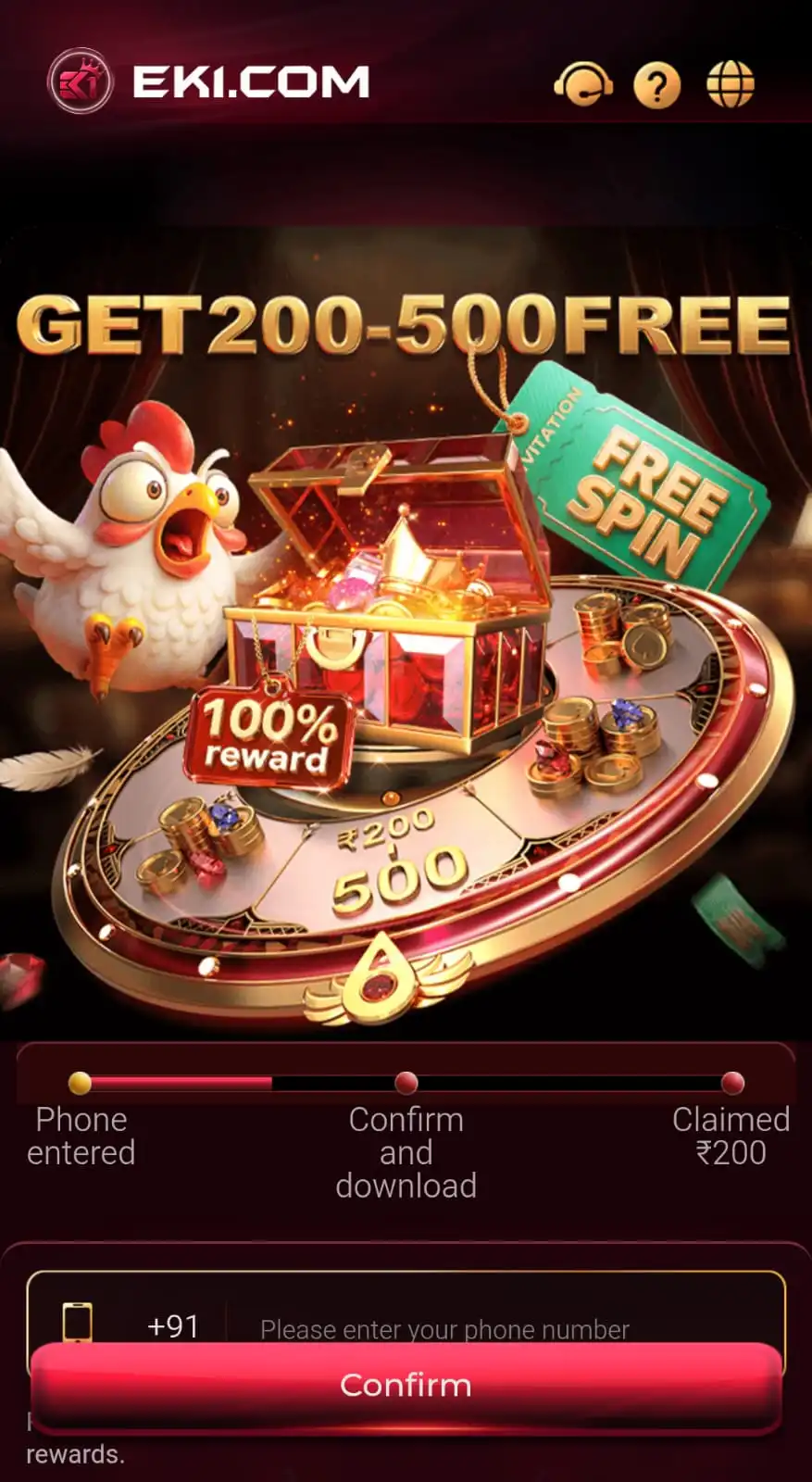
- Open the download route and confirm your number. The EK1 Game Download button opens an external agent/share page. Verify its address, enter your active mobile number, check every digit and select Confirm to start the APK download.
- Save the installer. Wait for the browser to finish downloading EK1.apk before opening it.
- Find the file. Open the Downloads folder, your browser's download history or Android File Manager.
- Review the installer. Tap the completed APK and read the Android installation prompt. Only allow installation from that source when you have verified the file and trust it.
- Install the update. If Android recognizes the package as compatible, continue using the Update or Install action presented by the system.
- Open EK1. Wait for installation to finish, then launch the app and verify that your existing account is accessible.
- Check the result. Return to Android Settings and confirm that the installed version is the version listed in the App Information table.
You do not need to keep the installer open once Android finishes. The app icon launches the installed application. If you want the complete explanation of Android's external-source installation prompts, the EK1 APK page covers those settings separately.
What Determines Whether EK1 Can Update Without Uninstalling?
Updating over an installed Android app normally requires package and signing compatibility. The exact requirements depend on how the app was originally installed. When the existing installation and new package match, Android can replace the application files while retaining its normal data area. When they do not match, Android can display messages such as “App not installed” or report a conflict with the existing package.
Do not assume that a file is compatible merely because it has the same icon or the same name. Similarly, changing the APK file name does not resolve a package-signature mismatch. The sensible response to a conflict is to verify that you obtained the intended app build before considering any more disruptive action.
Android version and device architecture can also affect whether a package will install. EK1 Game requires the minimum Android version shown in the information box or later. However, meeting the minimum Android version does not guarantee compatibility with every phone. Device architecture, available storage, package identity and signing compatibility can also affect installation or updates. If Android reports an unsupported-device or package-conflict error, review the specific message rather than disabling security protections.
What to Check After the EK1 Update
After the compatible update finishes, open EK1 and let the first screen load completely. An app can take additional time on the first launch while Android prepares its local data. Check the main lobby, the profile area and the account information you normally use before opening a new gaming session.
- Confirm that the EK1 Game icon opens the installed app and the main game lobby loads.
- Review the account/profile area to make sure the expected registered number is in use.
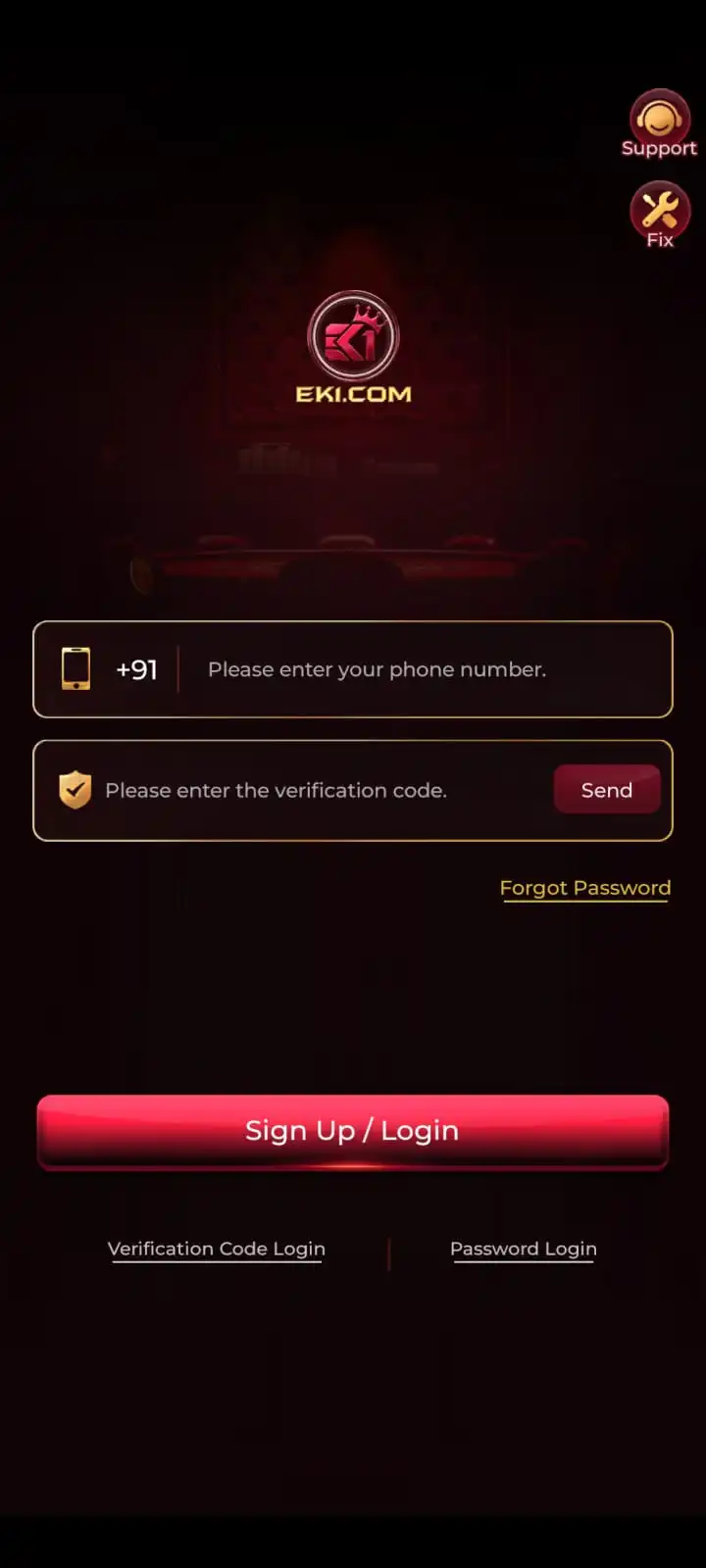
- If the application requests sign-in again, use the same registered mobile number, complete OTP verification or select the existing password login option when available.
- Verify that navigation into Hot, Slots, Poker, Fishing, KoolBet or Casino works as expected.
- Check Android Settings again if you need to confirm that the listed version replaced the previous build.
Visible category names and menu positions can change between app builds. However, the version information alone cannot confirm that any specific interface improvement was introduced. If an area appears unfamiliar, use the EK1 App guide to understand navigation and account controls.
EK1 Update Problems and Practical Fixes
Start with the error displayed by your phone. Repeatedly downloading the same file will not resolve every installation problem, particularly when Android reports a package conflict.
Check connectivity and available storage. Remove the incomplete copy and begin one fresh download rather than repeatedly opening a damaged package.
Look in the browser download list and Android Downloads folder. Check whether a different browser or file manager was used to save the file.
Confirm the package finished downloading, check free storage and read any compatibility or conflicting-app details supplied by Android.
A package or signing mismatch can prevent an update. Verify that the APK belongs to the same intended EK1 installation; do not uninstall the current app impulsively.
Read the device prompt and check which browser or file manager requested permission. Grant access only for a trusted, verified source; do not bypass malware alerts.
Close and reopen EK1, test the network and restart the phone if necessary. Distinguish loading issues from an installation failure before reinstalling.
When the App Runs Slowly After Updating
Check whether the issue affects every section or only one game. A slow lobby and a slow account area can point to network or device limitations. If only a graphics-heavy game slows down, available memory and the game itself may be more relevant. Close unnecessary background applications, keep free storage available and avoid running multiple downloads during a game session.
When Android Shows a Security Warning
An installation-permission request and a warning that a file may be harmful are not the same thing. Permission allows a browser or file manager to request APK installation; it does not verify that the APK is safe. If Android or a device security tool flags a file as suspicious, stop and investigate the source rather than overriding the warning to force installation.
If the update still fails: Note the exact Android error message, your phone model, Android version, currently installed EK1 version and the version of the downloaded file. Share those non-sensitive details through the support option available in your EK1 account if needed. Never include an OTP, password, payment PIN or full banking details in a support message.
EK1 Account Access After an Update
EK1 uses a mobile-number-based verification flow. If the app requests account verification after an update, use the same registered number, request the one-time code and enter the valid code for that session. Keep each OTP private; it should not be shared in messages or given to someone claiming to provide technical support.
If you have set up a login password, the account's login-password option uses a password of 8–32 characters. The password can be managed through My Profile → Account & Security → Login Password. The account recovery and login process is covered in more detail on the EK1 Login page. An app update does not require inventing a new account or changing a password unless the actual login screen requests an appropriate step.
If your registered mobile number is no longer accessible, resolve that issue before removing a working app. The ability to receive verification codes can be important for regaining access, even if the application itself installs successfully.
EK1 Update Safety and Responsible Use
Use the intended EK1 download source and avoid altered packages that claim to unlock rewards, predict outcomes or guarantee winnings. Neither APK installation nor a version update guarantees game results. Review Android security notices, keep OTPs and passwords private and use your own device for sensitive account settings.
EK1 includes games where financial loss may be possible. Familiarise yourself with game rules, the applicable legal restrictions and the site's Responsible Gaming information. Any promotions depend on their displayed eligibility and wagering conditions and should not be treated as guaranteed earnings.