
EK1 Deposit Overview
EK1 Deposit is the Wallet feature used to add funds to a EK1 Game account. The reviewed app screens show Paytm and PhonePe options, with QR/UPI payment instructions and a UTR submission field on the following browser page.
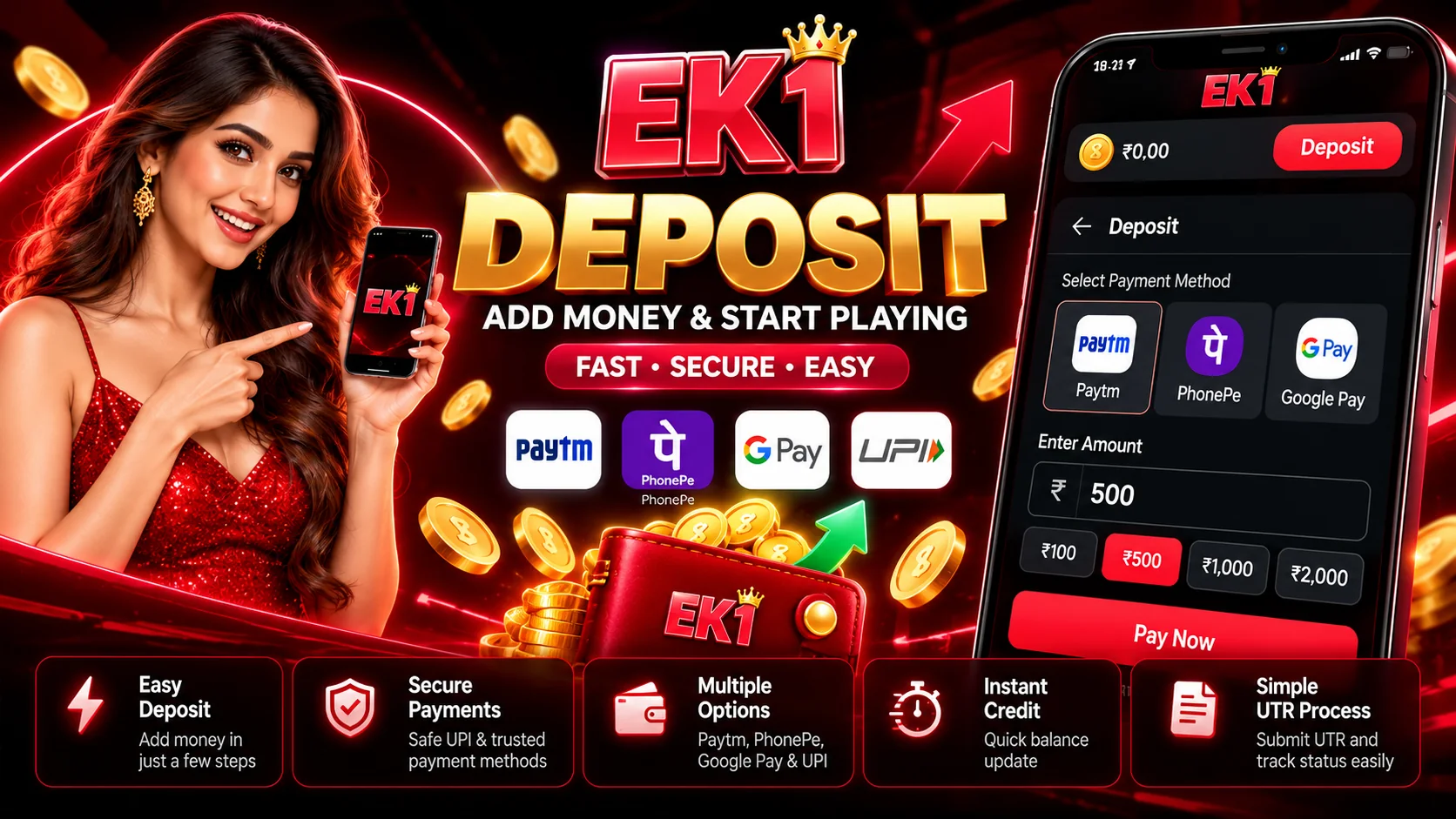
- Where to begin: Open Wallet → Deposit after signing in.
- Payment flow: Choose an amount, select a payment mode and review the current browser payment instructions.
- Transaction reference: Submit the genuine UTR/UPI reference after a successful payment.
- Track deposits: Check My Profile → Balance Record and your Wallet balance.
- Account access: Read the EK1 Login guide if you cannot sign in.
Opening a payment page or submitting a UTR does not itself prove that money has reached the EK1 Wallet. Confirm both the provider’s payment result and the credited balance.
What Is EK1 Game?
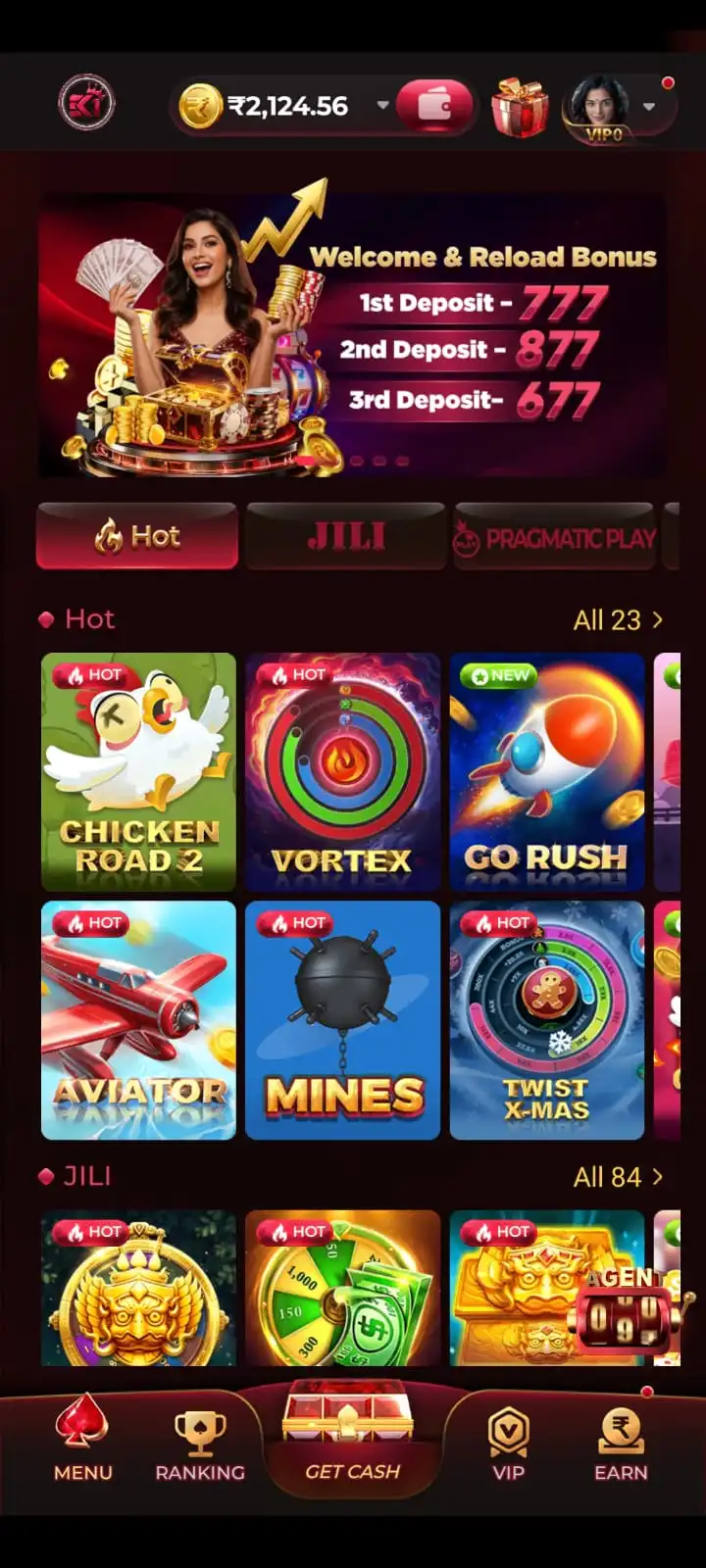
EK1 Game is an Android gaming app with a Wallet for deposits and withdrawals, account records, and game categories. This guide focuses on funding an account; see the EK1 Game homepage for game details.
EK1 Deposit Information
| Deposit Detail | Information |
|---|---|
| Deposit section | Wallet → Deposit |
| Minimum deposit | ₹100 |
| Maximum displayed deposit | ₹5,000 |
| In-app payment modes | Paytm and PhonePe |
| Payment page | Browser-based payment interface |
| Methods shown on payment page | QR Code, UPI, Paytm, PhonePe, PhonePe Bank (Bank Cards Only) |
| Payment reference | UTR / UPI Reference Number |
| Deposit records | My Profile → Balance Record |
| Advertised credit guidance | 1–5 minutes |
| Delay guidance | Contact Customer Service after 30 minutes |
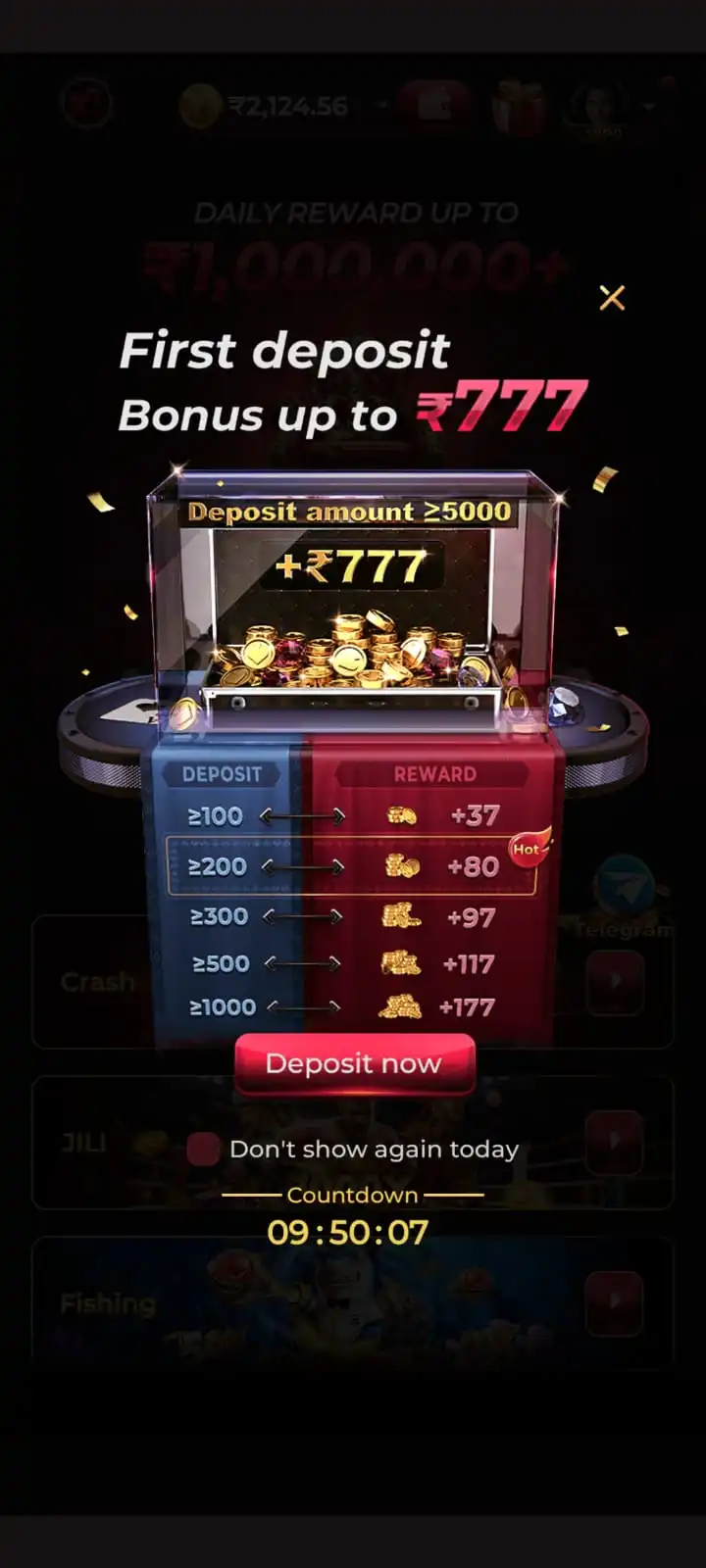
| First deposit offer | Extra reward up to ₹777, subject to eligibility |
These values and methods are from the reviewed screens, not a guarantee that all options will always be available. Check the current app and payment instructions before authorising a transfer.
How to Deposit Money in EK1 Game
Follow the funding instructions for your own account. Do not reuse payment details saved from an earlier session.
- Open EK1 Game. Sign in using your registered account.
- Open Wallet. Go to the Wallet section and select the Deposit tab, not Withdraw.
- Choose an amount. The reviewed screen displays preset options from ₹100 through ₹5,000.
- Select a mode. Choose Paytm or PhonePe when offered.
- Review the summary. Check the chosen amount, promotional bonus and any wagering conditions.
- Tap Pay Now. The demonstrated flow opens a browser payment page.
- Verify the payment destination. Check the amount payable and recipient details before paying.
- Complete payment. Use the currently displayed supported payment method, QR code or UPI instructions.
- Get the reference. After a successful payment, find the UTR or UPI transaction number.
- Submit the UTR. Enter it on the payment page and tap Submit UTR / Ref No.
- Return to EK1. Review My Profile → Balance Record and check Wallet for the credited amount.
Submitting a UTR helps associate a payment with the requested transaction but is not, on its own, confirmation that the EK1 Wallet has been credited.
EK1 Deposit via Paytm
For an EK1 Deposit via Paytm, the reviewed app opens a browser-based payment interface after Paytm and Pay Now are selected. The page shows a payable amount, QR code, payment choices and a UTR entry form.
Paytm Deposit Steps
- Open Wallet → Deposit and choose a deposit amount.
- Select Paytm in EK1 and tap Pay Now.
- On the browser payment page, verify the current amount and recipient.
- Choose an available payment method or use the current QR/UPI instructions.
- After payment succeeds, locate its UTR or UPI transaction reference.
- Return to the browser page, enter the reference and select Submit UTR / Ref No.
- Check My Profile → Balance Record and the Wallet balance.
The demonstrated payment page displays a countdown. If a session expires, check the actual payment status before initiating another transaction; avoid submitting duplicate payments to test a delay.
EK1 Deposit via PhonePe
The EK1 Deposit PhonePe mode follows a similar flow: selecting PhonePe and tapping Pay Now opens a browser payment page with QR/UPI details and a UTR form. In the reviewed example, this browser page also lists Paytm, PhonePe and PhonePe Bank (Bank Cards Only) choices; these are options inside the payment page, not necessarily separate modes on the initial EK1 Wallet screen.
PhonePe Deposit Steps
- Sign in to EK1, open Wallet → Deposit and choose your amount.
- Select PhonePe and tap Pay Now.
- Review the browser page and confirm the amount payable and recipient.
- Use a currently available PhonePe option or the displayed QR/UPI flow.
- Confirm successful payment in the payment provider.
- Copy the UTR / UPI reference, enter it on the payment page, and tap Submit UTR / Ref No.
- Return to EK1 to check the Balance Record and Wallet credit.
A payment-provider success message and a EK1 account credit are two separate checks. Confirm both when reviewing the transaction.
EK1 QR Code and UPI Payment
The browser page provides an Amount Payable, a current QR code and a section labelled Copy the UPI & Amount. Its displayed payment destination may differ across transactions. Neither an old screenshot nor another person’s UPI address should be used as a payment instruction.
Paying with a Current QR Code
- Confirm the amount and recipient on the payment page.
- Scan the QR code generated for this specific payment attempt using a trusted payment app.
- Verify the recipient and payable amount again before authorisation.
- Approve the payment through your provider’s normal authentication.
- Keep the successful UTR/transaction reference and submit it where requested.
The payment page includes a Save option but explicitly warns against reusing saved QR codes for repeated payments, as the funds may not be credited. Do not treat a transaction-specific code as a permanent deposit destination.
Paying with Copied UPI Details
If the current page displays a UPI ID and amount, they can be copied into a supported payment app where that option is available. Check the actual recipient before paying. Use the payment destination displayed for the current transaction.



How to Submit EK1 Deposit UTR Number
The reviewed payment page asks users to fill in the UTR after successful payment. A UTR, UPI reference or transaction ID identifies a specific payment and helps in checking the transfer.
How to Submit UTR / Ref No
- Complete the payment and confirm that the provider marks it successful.
- Open the payment receipt and find the UTR, UPI Ref No or transaction ID.
- Return to the same browser payment page.
- Find the field labelled Paid? Submit UTR/Ref No.
- Enter the correct reference and tap Submit UTR / Ref No.
- Read any response from the page, then check the EK1 Balance Record.
If the payment is pending, do not invent a UTR. If the browser session has expired after an actual successful payment, keep the receipt and contact the relevant help service rather than sending a second payment.
How to Check EK1 Deposit History
EK1 Deposit History is accessed through My Profile → Balance Record. It is useful for checking whether account activity associated with a payment has been recorded.
- Sign in to EK1 and open My Profile.
- Select Balance Record.
- Review the available transaction entries and locate the relevant deposit if shown.
- Compare the recorded amount or time with your payment receipt.
- Open Wallet and check the current Cash Balance.
The Wallet displays Cash Balance and Withdrawable separately. A payment receipt from the provider records the transfer, while the Balance Record and Wallet help establish what EK1 has credited. Use the transaction details displayed in Balance Record to match the payment with your receipt.
EK1 First Deposit Bonus and Wagering Requirement
The EK1 first-deposit promotion advertises an extra reward of up to ₹777 on a qualifying initial deposit. The reviewed ₹5,000 option shows a promotional total of ₹5,777. Lower preset deposit amounts carry different displayed bonus amounts, but those full terms belong in the EK1 Bonus Guide, which includes the eight-option chart.
The app states that after participating in this event, withdrawals are subject to wagering turnover of three times the deposit amount. For a ₹1,000 qualifying deposit, this is ₹3,000 of qualifying turnover. It does not mean making a second ₹3,000 deposit, and it is not a guarantee of winning or withdrawal. Which activities count depends on the current offer rules.
- The extra rewards shown relate to the first deposit offer, not automatically every later deposit.
- An advertised deposit-plus-bonus total is not necessarily immediately withdrawable cash.
- Check eligibility, current conditions and any bonus expiry before participating.
- For complete promotional terms, see the EK1 Bonus Guide.
EK1 Deposit Payment Verification and Status
Before entering a payment reference, check the payment in the UPI or banking app that actually handled the transfer. A message on the EK1 payment page alone is not a banking receipt, and a reference number should only be submitted for a payment confirmed as successful by the provider.
- Open the payment app's transaction history and locate the payment by date, time and amount.
- Check whether its status says Successful, Pending or Failed. Do not treat Pending as Successful.
- For a successful transfer, verify the beneficiary displayed on the original payment screen and save the provider's genuine transaction reference.
- Return to the same active deposit session when available and submit the correct UTR only once.
- Compare the Wallet credit and My Profile → Balance Record with the provider receipt.
If the provider shows Pending or Failed, use that payment provider's transaction status and reversal process before creating another payment. A UPI reference does not independently establish that EK1 has credited the account.
EK1 Deposit Payment Status: Failed, Pending or Credited
A single deposit involves separate records: the external payment provider's transaction result, the browser payment page's UTR submission and the EK1 Wallet credit. Check each record rather than assuming that success at one stage means the others are complete.
If your bank or UPI provider reports failure, do not submit a made-up UTR. Check whether funds were debited and follow the provider's reversal or complaint procedure.
Do not repeat the payment immediately. Record the transaction details and wait for the provider's final status before deciding whether follow-up is needed.
Keep the receipt, confirm that the correct UTR was submitted, review Balance Record and contact the app's Customer Service if the transaction remains unresolved.
Keep receipts and references for both payments. Report both separately to the relevant support service; do not assume that one will automatically reverse.
What to Include When Reporting an Uncredited Deposit
Provide the deposit amount, date and approximate time, provider status, genuine UTR or transaction reference and relevant non-sensitive screenshots. Describe whether the issue concerns payment authorisation, UTR submission or missing Wallet credit. Never send OTPs, UPI PINs, passwords or full card details.
EK1 Deposit Not Credited or Pending
The EK1 Wallet screen says a deposit is usually credited within 1–5 minutes, but this is guidance rather than a guaranteed processing time. It advises contacting Customer Service when a completed payment has not arrived after 30 minutes.
What to Do if a EK1 Deposit Is Not Received
- Check whether the payment provider actually marked the transfer successful.
- Confirm the correct amount was deducted and save the transaction receipt.
- If successful, check whether the correct UTR / reference number was submitted.
- Review the EK1 Wallet and My Profile → Balance Record.
- Wait for the usual processing period described in the app.
- If the completed payment remains uncredited after 30 minutes, contact the Customer Service option available to your EK1 account.
- Provide the amount, date, time and payment reference needed for investigation, but never an OTP, PIN or password.
Do not initiate another payment to test whether the first one will clear. If funds were deducted but the provider reports failure or a pending state, review that provider’s transaction and reversal guidance before treating it as a EK1 credit.
Common EK1 Deposit Problems and Solutions
Pay Now does not open
- Check connectivity and reopen the app’s deposit page. Avoid repeated taps if another session may already be active.
QR code is rejected
- Use the code generated for the current transaction and check whether the payment session has expired.
Amount or recipient does not match
- Stop before paying. Recheck the selected amount and the current destination; do not use saved details.
UTR number is rejected
- Check the reference against your actual successful payment. Never submit another transaction’s UTR.
Deposit missing from Balance Record
- Compare provider proof, UTR submission and Wallet credit; retain details for the app’s support option.
First deposit bonus is missing
- Review promotion eligibility rather than assuming every deposit qualifies. See the EK1 Bonus Guide.
Duplicate payment was made
- Keep both receipts and references and seek transaction-specific assistance.
Cash and Withdrawable balances differ
- Review the applicable wagering/withdrawal conditions. See the EK1 Withdrawal Guide.
EK1 Deposit and Payment Safety
Deposits into a real-money gaming app carry payment risks and potential gaming losses. A promotional reward is not a guarantee of profit or immediate withdrawal. Verify payment instructions carefully and only participate where permitted by applicable laws and age restrictions.
- Verify both the payment amount and recipient before sending funds.
- Never share your OTP, password, UPI PIN or card security code.
- Do not reuse QR images or UPI details from earlier transactions.
- Retain receipts and submit only your own genuine transaction reference.
- Avoid duplicate payments while an earlier transaction is unresolved.
- Read bonus wagering conditions and set personal spending limits.
- Do not deposit money to chase losses or rely on any promise of guaranteed winnings.
- For guidance, visit Trust & Safety and Responsible Gaming.
EK1 Deposit Frequently Asked Questions
How do I deposit money in EK1 Game?
Open Wallet → Deposit, choose an amount and a payment mode, tap Pay Now, complete the payment, submit UTR when requested and check Balance Record.
What is the minimum EK1 Deposit amount?
The reviewed Wallet screen shows a minimum of ₹100.
What is the maximum EK1 Deposit amount?
The reviewed screen shows preset options up to ₹5,000; check current limits in the app.
How do I make a EK1 Deposit via Paytm?
Select Paytm in Wallet → Deposit, follow the current browser payment instructions, submit your UTR and check the account balance.
Can I deposit via PhonePe?
The reviewed EK1 Wallet screen offers PhonePe. Its browser flow provides QR/UPI instructions and a UTR submission field.
How do I pay using the EK1 QR code?
Use only the QR code for the current payment attempt, verify the recipient and amount, and retain the resulting reference.
What is the EK1 Deposit UTR number?
It is the transaction reference requested on the demonstrated payment page after successful payment.
Where do I submit my EK1 UTR?
On the browser payment page, enter the reference in Paid? Submit UTR/Ref No and tap Submit UTR / Ref No.
Where can I check EK1 Deposit History?
Go to My Profile → Balance Record and compare available entries with your payment receipt.
How long does a EK1 Deposit take?
The app says usually 1–5 minutes, although processing can take longer.
What if my deposit does not arrive after 30 minutes?
Check provider success, UTR submission, Wallet and Balance Record, then contact the app’s Customer Service with the transaction reference.
Does EK1 provide a first deposit bonus?
The reviewed promotion advertises rewards up to ₹777 subject to eligibility and current offer conditions.
What does the 3× EK1 wagering requirement mean?
The reviewed first deposit promotion states that withdrawal is subject to qualifying turnover three times the deposit amount; this is not guaranteed earnings.
Can I reuse a saved EK1 payment QR code?
The browser payment page warns not to reuse saved QR codes for repeated payments.
Is a EK1 Deposit the same as a withdrawal?
No. Depositing adds funds; withdrawing requests funds from an eligible account balance.
What if I paid but did not submit the UTR?
Keep the payment receipt and reference. If the payment page cannot be recovered safely, contact the relevant support service rather than paying again.
Related guides: EK1 App, EK1 Withdrawal and EK1 Login.