
EK1 Register Overview
EK1 Register helps first-time users understand mobile verification and account access in the EK1 Android app. Downloading the APK, installing the app and completing an account verification are separate actions.
- Download and install the EK1 Android app from a source you trust.
- Open the installed app and check its available Verification Code Login option.
- Use your own mobile number and complete the SMS code process shown on screen.
- If the number already has an account, use the existing-account login or recovery method instead of assuming a new account is required.
For returning users, see EK1 Login; for installation help, see EK1 APK.
EK1 Register Information
| App name | EK1 Game |
|---|---|
| Platform | Android |
| Account access | Mobile verification or password login |
| Country code shown | +91 |
| Verification control | Send → SMS code |
| Login button | Sign Up / Login |
| Password settings | My Profile → Account & Security → Login Password |
| Password length | 8–32 characters |
| Guide type | Informational; no passwords or OTPs collected here |
Before You Start EK1 Registration
Prepare the correct SIM and a working Android phone before starting:
- Choose the correct number: use a SIM you expect to keep, because future login and recovery can depend on it.
- Check the entry: inspect every digit before you press Confirm.
- Keep SMS access: avoid turning off the registered SIM before the OTP stage is complete.
- Use a trusted download source: avoid modified app files distributed through unknown messages.
- Review eligibility: read applicable age and location restrictions before using real-money features.
- Check your connection: keep data or Wi-Fi active and review Android security prompts.


How to Register for EK1 Game: Step-by-Step
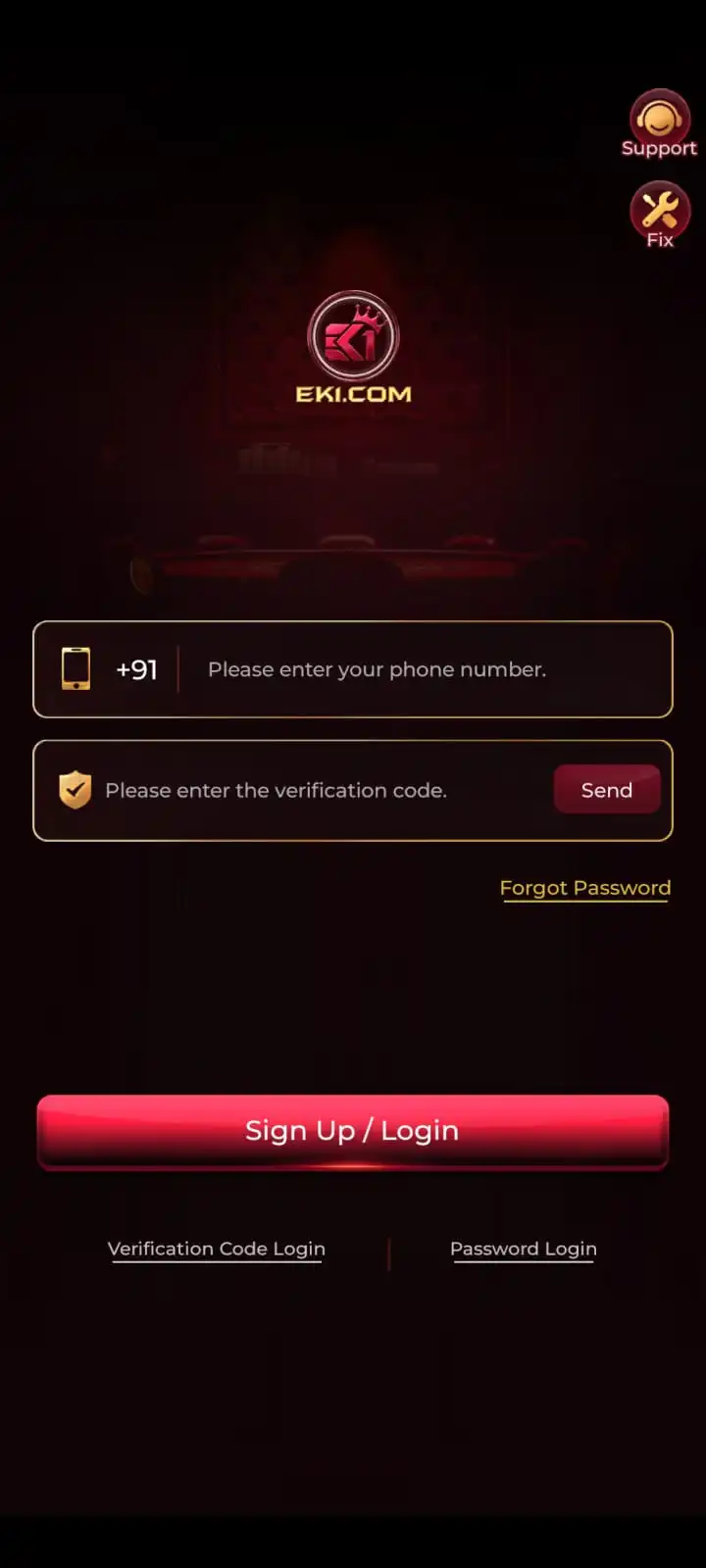
The supplied screens indicate a mobile-number check in the download flow and a separate verification-code login in the installed app. Follow the controls that actually appear on your device.
- Visit the EK1 Game Download page and use its download action to open the linked EK1 download flow.
- Enter your active mobile number in the field presented there. This should be a number you personally control.
- Look at the entered number again. Correct any typing mistake before selecting the Confirm button.
- Follow the browser's normal download instructions to save the Android file named EK1.apk.
- Open the saved APK, review Android security warnings and complete installation only if the source is trusted. See the EK1 APK installation guide for setup details.
- Open the EK1 Game app after installation and continue with the mobile number you confirmed earlier.
- Choose Verification Code Login when shown, enter your number with the displayed +91 country code, tap Send, and enter the current SMS code.
- Use Sign Up / Login and check whether the app opens the account area. Do not begin a second registration merely because the first screen takes time to load.
- Once inside the app, review your profile and account controls. Create a login password from the available account-security section if you intend to use password sign-in later.
If an account already exists for the entered number, the appropriate next action is usually to sign in, not to repeat a new-account process. See EK1 Login for returning-user access and recovery guidance.
Mobile Number Confirmation and OTP Verification
The number confirmation in the download flow and the SMS code inside EK1 are different checks:
- Before download: review the entered mobile number and select Confirm if that screen appears.
- Inside the app: choose Verification Code Login, enter your +91 number, and request the code with Send.
- Account access: enter the most recent valid SMS code and use Sign Up / Login.
OTP Not Received or Rejected?
- Wrong SIM: check which SIM receives messages on a dual-SIM phone.
- No SMS: verify signal and mobile number; retry only after the available waiting period.
- Invalid code: use the latest code for the current request, not an older message.
- Privacy: never forward the OTP or share it with a third party.
Confirm Before Download
Confirming a phone number does not prove registration is complete.
Verify in the EK1 App
The installed app may request an SMS code before account access.

Set Your EK1 Login Password After Registration
After you can access the account, you may set a separate password for future sign-ins. EK1's described account route is My Profile → Account & Security → Login Password. The password field accepts 8–32 characters. Use a unique password that you have not reused on other websites or apps.
- Open EK1 Game with your verified mobile number.
- Enter My Profile from the account area.
- Open Account & Security, then select Login Password.
- On Set Login Password, request the SMS code using Send and enter that code.
- Enter an 8–32-character new password and repeat it in the confirmation field.
- Tap Complete to submit the password settings.
- For a later login, use the password option shown with your registered mobile number.
Keep your password private. If you forget it, follow the recovery instructions in the EK1 Login guide.
What to Check After Your EK1 Account Opens
After successful verification, check the account and become familiar with the interface:
- My Profile: confirm you can reach the account and security settings.
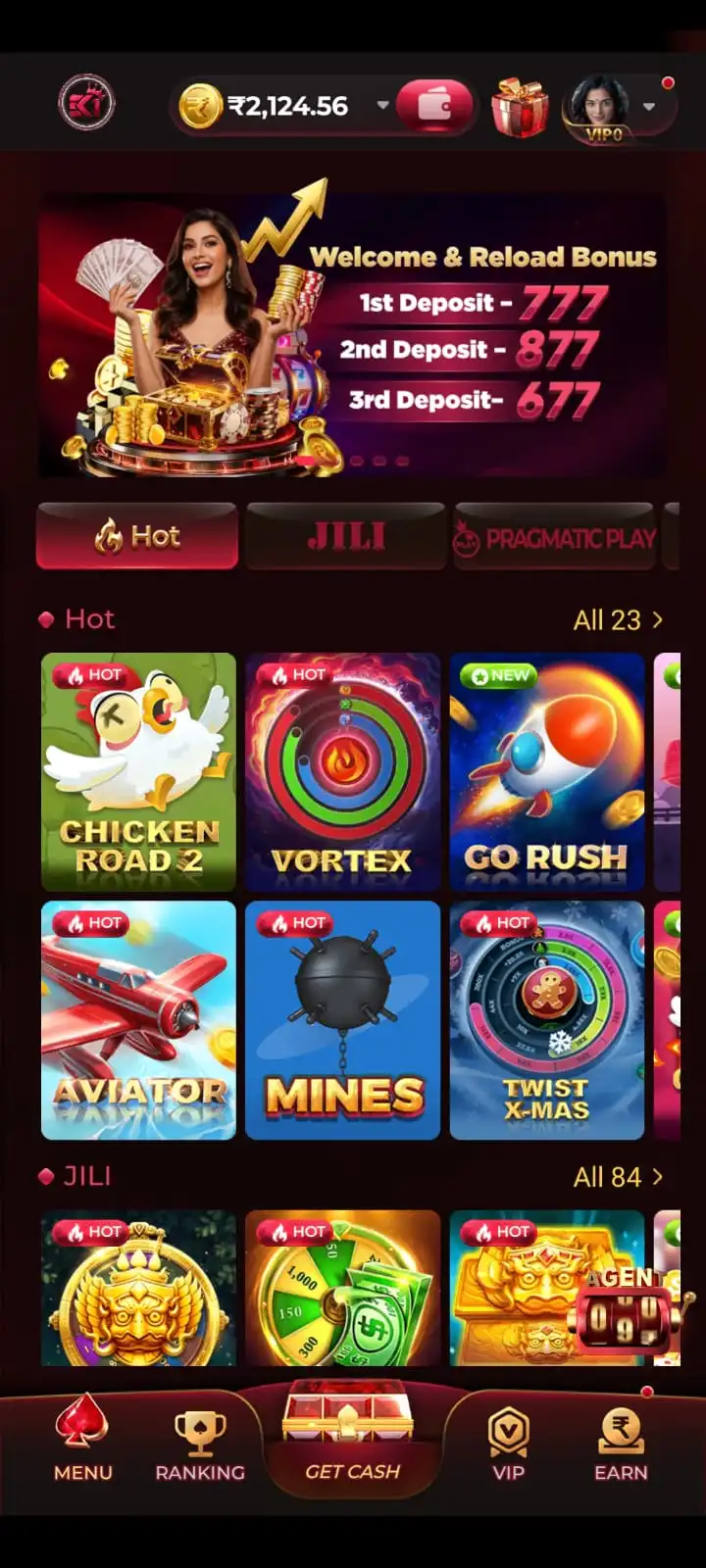
- Game lobby: explore Hot, JILI, Slots, Rummy, Teen Patti, Fishing, Casino and KoolBet categories.
- Wallet: learn where balance information appears; a deposit is not required merely to explore menus.
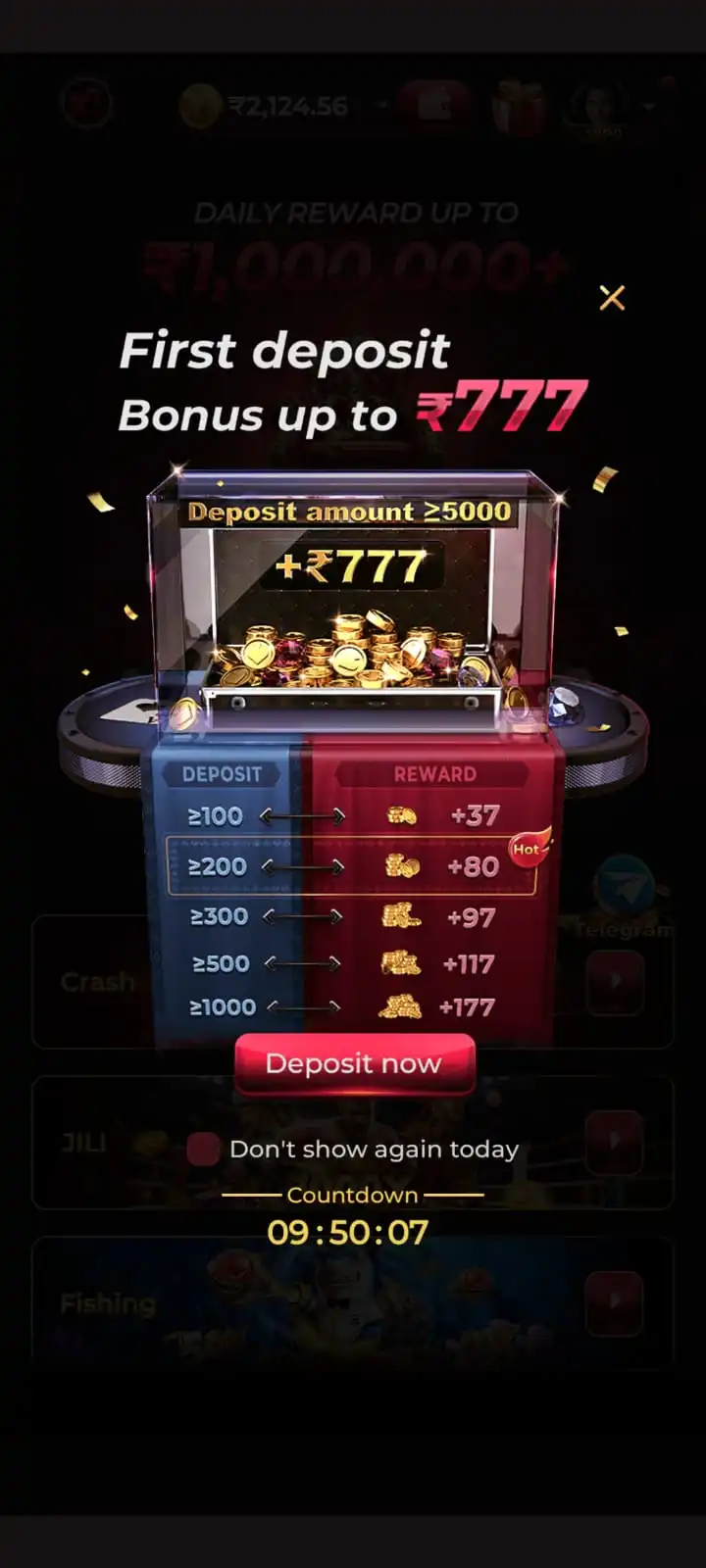
- Promotions: any displayed welcome bonus depends on current eligibility and offer conditions.
- Need assistance? Read the EK1 Login guide for returning-user access or EK1 Deposit guide for payment information.
Download, Installation and Registration Are Different
- Download: saves the Android APK file.
- Installation: adds the app to the device.
- Register or sign in: verifies the mobile number and establishes account access.
EK1 Account Already Exists – What to Do
If EK1 says your mobile number already belongs to an account, treat it as an existing-account sign-in issue, not a reason to register repeatedly. The app uses a shared Sign Up / Login action, so the next screen can depend on whether the phone number is already recognized.
- Check that the +91 mobile number belongs to you and matches the number used previously.
- Choose Verification Code Login if you still receive SMS on the registered SIM, or choose Password Login if you already set a password.
- If the saved password is unknown, follow the EK1 Forgot Password instructions using the recovery options shown in the app.
- Do not create duplicate accounts or repeatedly submit the same form to get around a registration message.
- If you cannot access the registered SIM or recovery option, use Support inside the app and explain the issue without sharing your OTP or password.
A previously registered phone number can still require verification when signing in on a different device. Complete only the checks that the current app screen requests.
EK1 Registration and OTP Problems
Mobile Number Was Entered Incorrectly
Correct it before selecting Confirm. If you have already passed that stage, use the available way to return and review the number instead of continuing with the wrong SIM.
Number Is Already Registered
Move to EK1 Login or account recovery. Creating more accounts is not an appropriate fix for an existing account.
App Opens but Registration Does Not Continue
Check connectivity, close and reopen the app once, and retry the current screen carefully. If the same error persists, use the account-help route shown inside the app.
Android Does Not Install the File
Confirm the download completed and inspect any compatibility or security warning. Do not bypass a malware alert; see the dedicated EK1 APK instructions.
Registered Mobile Number No Longer Active
If you cannot receive SMS on the registered number, ask the in-app Support option about available recovery checks. Do not try to bypass verification or share private credentials.
If you have already completed mobile verification but the login screen appears again, try the appropriate login method rather than starting registration over. Repeatedly requesting OTPs or reinstalling the app without diagnosing the screen can create more confusion, not solve the underlying issue.
If you contact in-app Support, describe the step that failed and the exact error text. Do not send your OTP, password, complete bank details or any sensitive account information.
EK1 Account Safety and Privacy
Your registered phone number helps establish access to the account, which makes protecting that number and its SMS messages important. An unexpected call or chat asking you to read out a verification code is a warning sign. Legitimate account recovery should happen through the intended app flow, not through a stranger offering to complete registration on your behalf.
- Never disclose an active OTP, login password or payment PIN to another person.
- Do not install an altered EK1 APK claiming guaranteed winnings, predictors or special login privileges.
- Review Android installation and permission warnings before proceeding.
- Do not send images exposing account credentials or personal banking details to public groups.
- Keep access to your registered SIM and set a unique login password.
- Review Privacy Policy, Trust & Safety and Responsible Gaming for site guidance where those pages are available.
If you are using a shared device, sign out of EK1 after finishing and avoid saving your login password on that device.
Real-money gaming can involve financial loss and can be restricted or prohibited depending on location. Check current rules before participating. This page is an informational guide; it does not collect account passwords, receive SMS verification codes or register accounts directly.
EK1 Register FAQs
How do I register for EK1 Game?
Install EK1, open Verification Code Login, enter your mobile number, request an SMS code and use Sign Up / Login. Follow any number confirmation shown during download.
Can I register using a number that cannot receive SMS?
Use a working number that you control and that can receive the verification message. An inactive SIM can prevent completing account setup and recovering access later.
Where do I confirm my mobile number?
On the download/account flow, check the entered number and tap Confirm when that control appears. Finish any requested verification inside the intended app.
Is the download-page confirmation the same as signing in?
No. Confirming your number before downloading and successfully accessing your account inside the app are separate stages.
What should I do if the EK1 OTP does not arrive?
Recheck your phone number and SIM service, wait for the current request and use the app’s resend option if available. Avoid repeatedly requesting codes.
What if I entered the wrong number during EK1 registration?
Correct the number before confirming. If you already completed setup with an incorrect number, use the available in-app account-help process instead of trying random replacement details.
Can I register again using an already registered number?
If the app recognizes an existing account, use EK1 Login or the supported recovery flow rather than creating a duplicate account.
How do I set a EK1 login password after registration?
After verifying and entering the app, open My Profile, then Account & Security and Login Password. Follow the on-screen security checks and create an 8–32-character password.
Why does EK1 ask for verification again after I reopen the app?
The app may request verification again for account access. Confirm you selected the same registered mobile number and follow the supported login method; do not create a second account.
Does this guide collect my OTP or registration details?
No. This is an information page. Enter account information only in the actual app or intended account flow, never in messages sent by strangers.
For the rest of the Android setup, visit EK1 Game Download or EK1 APK. Returning members should use EK1 Login; for general app navigation see EK1 App.